Cursor Cloud Agents
Cursor Cloud Agents let you assign a mission from Q to Cursor so Cursor can work on the linked GitHub repository.
This integration requires:
- a Cursor account
- Cloud Agents enabled in your Cursor account
- a connected GitHub repository in Q
Before You Start
Before using the integration in Q, make sure your own Cursor Cloud Agent setup is already working inside Cursor itself.
- Open Cursor Cloud Agent Settings and configure Cloud Agents for your account.
- Open Cursor Agents and run a simple test task against the target repo.
- A good smoke test is: create
test.mdat the repository root without content. - In the Cursor agent UI, make sure the GitHub account, repository, and branch are visible above the chat window.
If Cursor Agents cannot connect to the repository in Cursor's own UI, Q will not be able to rely on that connection either. The safest validation is: if it works in Cursor's proprietary agent UI, the API connection is likely working too.
Board Activation
Cursor Cloud Agents are off by default on mission boards.
To enable them:
- Open the mission board
- Click the board settings button
- Open the
Integrationstab - Enable
Cursor Cloud Agents

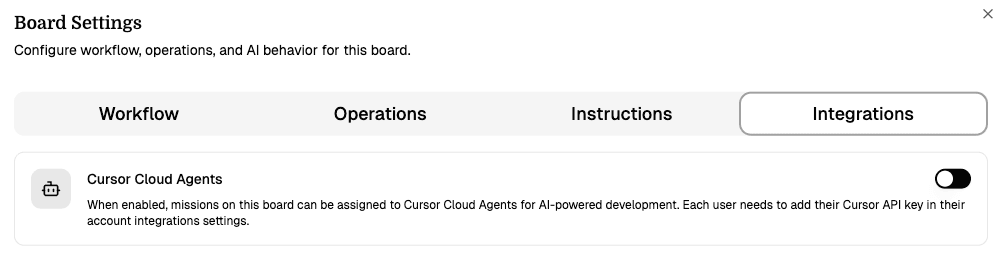
The board settings UI also shows two requirements:
- a GitHub repository must be linked to the project
- each user must have a Cursor API key saved in their account settings
Connect GitHub
First, connect a GitHub repository to your Q project. Cursor Agents need a linked repository to work against.
Enable Cursor on the board
Go to the board settings and enable Cursor Cloud Agents in the Integrations tab.
Assign a mission to Cursor
You can assign a mission in two places:
- from the mission card menu under Assign to Cursor
- from the mission content header via the Assign to Cursor button
Choose whether to auto-create a PR
In the assignment dialog, you can keep Auto-create Pull Request enabled. Q then sends the mission to Cursor and Cursor works on a branch named like cursor/dev-0123.
Monitor progress
After assignment, the mission shows Cursor status and links. You can click the agent link to monitor progress in Cursor. If a pull request is created, it is linked back to the mission automatically.
What Gets Sent to Cursor
Q sends the mission body only as the prompt.
That means the mission content needs to be good enough to stand on its own before you assign it.
Only the mission body is sent to Cursor Cloud Agent. Make sure the mission content contains the right instructions, context, and acceptance criteria before assigning it.
Where the Action Appears
Once board-level activation is enabled, the action appears in two places:
- on the mission card, inside the menu near Details
- in the mission content header as Assign to Cursor
If the mission is already assigned, the UI switches from an assignment action to status and link buttons.
Status and PR Links
After assignment, the mission can show Cursor-related status such as:
CreatingWorkingDoneErrorStopped
If Cursor provides an agent URL, you can click it from the mission card or mission header to monitor updates.
If a pull request is opened, Q links it back to the mission automatically and displays a PR badge with the PR number.
You may need to refresh the page manually to see newly updated Cursor status or newly linked pull requests.
Cloud Agents work autonomously. Always review the pull request before merging.
Write detailed mission bodies with clear acceptance criteria. The better the mission body, the better Cursor's output.